
Verify agency authorization, confirm local display permission, and use controlled overrides before pausing vehicle ads for emergency alerts.
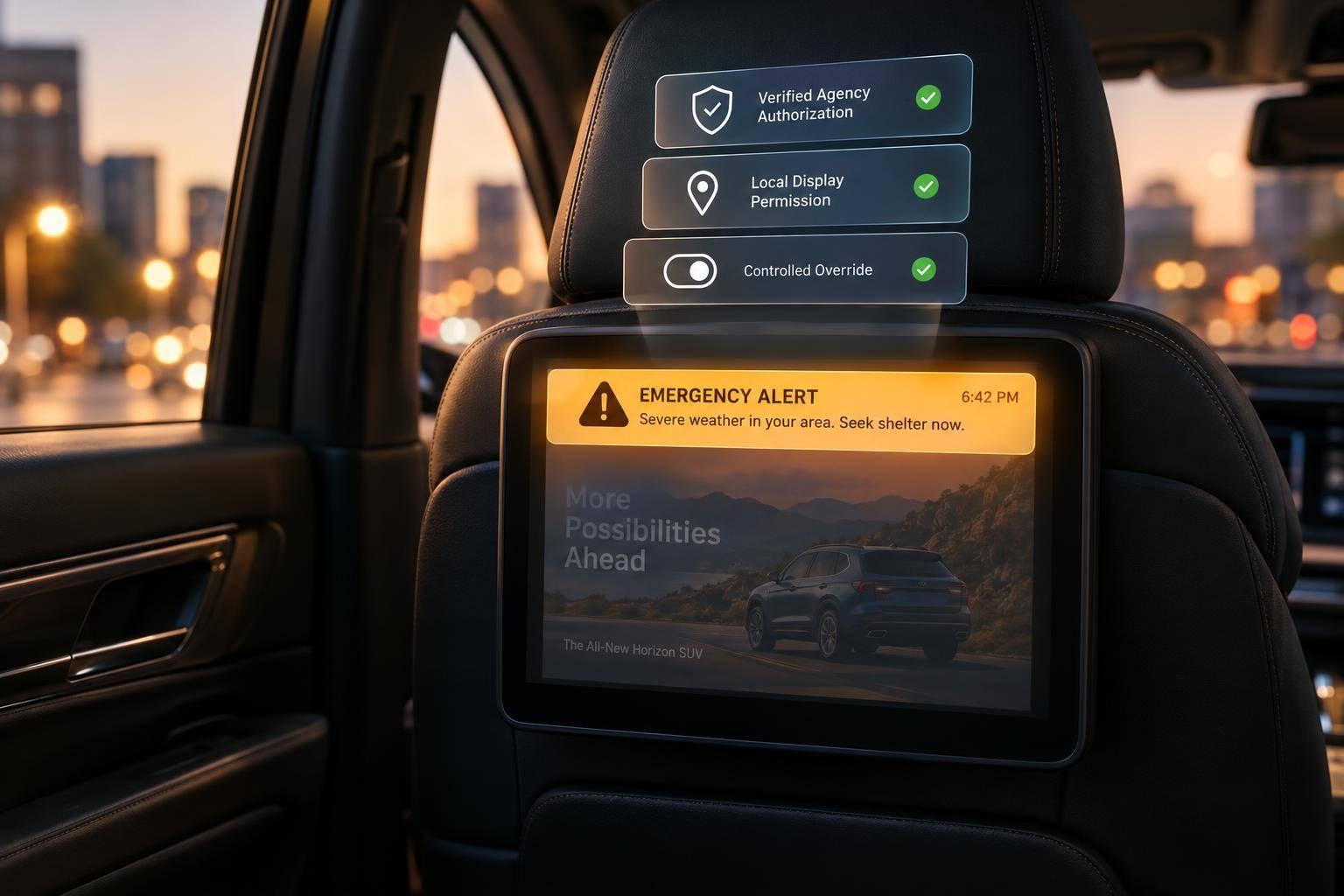
Vehicle ads should pause for emergency alerts only after 3 checks: agency verification, local display permission, and internal approval. Receiving a phone or broadcast warning alone does not permit a fleet to replay it on vehicle screens.
A safe override follows a clear process:
Rooftop screens and passenger tablets are supplemental messaging channels - not automatically part of the federal emergency alert system. If permission or message validity is unclear, hold the override.

Vehicle Emergency Alert Override Workflow
Clear three approval gates before interrupting ads: agency authorization, local display permission, and internal compliance approval. Call the agency at a published number you’ve checked independently - not the contact details in the request. Confirm the official’s name, title, agency, incident or case reference, and requested action.
Create a standard approval record with the verified agency, callback details, jurisdiction, incident or case number, alert type, affected area, approved wording, required action, channels, start and expiration times, time zone, content version, internal approver, and deactivation authority.
Keep the original request, verification notes, screen preview, activation and deactivation logs, and any later corrections. Playback logs alone don’t prove government authorization.
| Request status | Required action |
|---|---|
| Verified request | Display after local checks and internal approval |
| Unverified request | Hold and escalate; do not override ads |
| Advertiser-submitted safety notice | Review as commercial or public-service content, not an official alert |
| Expired alert | Reject activation or remove through approved recovery |
Once approval is logged, classify the alert source before releasing any screen for display.
Classify the request, then label it as an imminent threat, AMBER Alert, evacuation order, shelter-in-place instruction, severe-weather warning, missing-person notice, transportation advisory, or routine public-safety announcement.
Record whether the message is an agency-authenticated relay, a direct agency request, or non-official safety content. That source type helps determine whether the fleet may reproduce it on vehicle screens.
FEMA’s Integrated Public Alert and Warning System (IPAWS) distributes authenticated warnings through channels including Wireless Emergency Alerts (WEA), the Emergency Alert System (EAS), and NOAA Weather Radio. AMBER Alerts may also be distributed through WEA.
Receiving a warning through WEA or EAS does not give a fleet permission to reproduce it on vehicle screens. If rights to reproduce the message or changes to its wording are unclear, send the request to compliance or the issuing authority.
Use the alert type and source to determine which jurisdictions and screen types can receive it.
Check the city, county, state, and transportation-agency rules that apply to mobile billboards, taxis, rideshare vehicles, digital signs, public rights-of-way, airports, and transit systems. Review moving and parked vehicles separately. Check rooftop screens and passenger-facing tablets for every jurisdiction the vehicles enter.
Retain written permissions, along with written limits on brightness, flashing, scrolling, animation, color, sound, hours, driver distraction, and placement near intersections or rights-of-way. Emergency status does not waive vehicle-advertising or roadway-safety rules.
Approve only the jurisdictions and screen types that have cleared review. When vehicles cross boundaries, require a jurisdiction-level review rather than applying one agency’s permission to the whole fleet. If a requested display conflicts with local rules, hold that placement. Ask compliance and the issuing authority to resolve the conflict before activation.
Configure the override in screen management software only after these checks and approvals are complete. Set a fixed display area, expiration, and cancellation path for the controlled screen override.
After approval, turn the request into a software override with clear limits. Use a separate emergency playlist or temporary priority layer. Leave booked schedules, insertion orders, creative files, targeting rules, and billing records unchanged. Log the interruption against affected devices and campaigns for reconciliation.
Give emergency content the highest priority allowed by fleet policy - without bypassing safety, accessibility, legal display, or brightness limits. Suppress ads only on approved vehicles, routes, zones, or geofences. Keep approved wording and attribution unchanged unless the agency approves edits.
Set the start time, expiration time, and time zone, and synchronize device clocks. Specify what happens when a device enters, reaches the boundary of, or leaves the approved area. Location drift must not expand that area.
Require operator confirmation unless the automated trigger has documented approval. When the override ends, resume the next valid scheduled ad. Do not restart the campaign or erase missed delivery.
Choose the lowest-risk activation method that fits the approved scope.
Geofencing controls placement, not activation.
| Method | Approval requirement | Activation timing | Main failure risk |
|---|---|---|---|
| Manual override | Authorized operator confirmation | Depends on the operator | Wrong screens |
| Scheduled override | Approval before scheduling | Approved start time | Outdated timing or instructions |
| Geofenced override | Approved message and boundary | Depends on location data and activation rules | Stale location data |
| Automated feed activation | Pre-approved authority, feed, and trigger rules | Fast if connected | Invalid, stale, or compromised feed |
For high-impact overrides, have a second authorized reviewer check the selected screens, boundary, creative preview, and expiration. Faster activation does not remove source verification or local approval requirements.
Enroute View Media provides cloud-based ad and screen management with geo-time targeting for rooftop screens and in-taxi tablets.
Get written confirmation that the platform supports emergency playlists, priority overrides, role-based approvals, device-side expiration, delivery acknowledgments, offline behavior, and automated alert integrations. Require test results showing that ad records remain intact and playback resumes after cancellation or expiration.
Once the override is live, use the fallback path set before deployment for any device that misses the command or loses its signal. Unverified requests must not interrupt ads. Where ordinary advertising remains lawful, keep the last approved commercial playlist running. If an active override becomes invalid, switch to a locally permitted blank screen or preapproved unavailability notice. Every override must expire locally.
Assign operations, compliance, and technical owners, plus after-hours backups. Provide an authenticated kill switch that is time-stamped, logged, and limited to affected devices. Cancellation is not an all-clear; a follow-up update or separate resolution message may still be needed.
With the fallback path in place, track each command and recovery step separately.
Track creation, delivery, acknowledgment, and playback separately. An acknowledgment does not prove playback. Record each device’s ID, version, timestamp, location, and status. Escalate unreachable screens, and do not count them as covered. Protect approval, edit, activation, cancellation, and rollback records from changes or deletion without permission.
Resume approved ads after expiration, verified cancellation, or compliance-directed recovery. Log the trigger, affected screens, version, time, and operator. Verify actual paid playback, not just the restoration command. Have the account owner reconcile missed delivery and arrange replacement impressions, added playtime, or credits only as required by advertiser contracts.
Use these logs to test the same failure cases before they reach the live fleet.
Test only in staging or a controlled test group - never with a live emergency message. Test rooftop screens and in-taxi tablets separately so fleet averages do not hide failures.
Test lost connectivity, stale GPS data, clock drift, corrupted or tampered content, failed expiration, cancellation delivery, and partial-fleet activation. Compare device behavior against the expected activation, fallback, and recovery results. Confirm that campaigns remain intact and paid playback resumes correctly. Record the scope, device IDs, timestamps, expected result, actual result, defects, and fixes.
Use a documented control loop to close each override safely. Verify authority, classify the message, and confirm jurisdiction and local permissions. Limit the override to approved screens and time, monitor delivery, then restore normal advertising.
If authority, jurisdiction, or message validity is unclear, hold the override. Escalate to the named emergency lead and keep the approved fail-safe state active. Don’t bypass it before approval is recorded.
Before an incident, name a primary approver and backup. Assign separate roles for verification, activation, and review. Run tabletop exercises and labeled device tests, document defects and fixes, and schedule the next test. Make these steps routine before an emergency arrives.
Use a programmatic management platform to automate administrative tasks, including negotiations, RFPs, and insertion orders. That means less time spent setting up campaigns.
Role-based access control lets only approved team members make edits, while an audit trail logs every change to ad assets. Pre-approve assets against brand safety guidelines and mechanical specs, then set rules to block sensitive content or competitors. The platform handles delivery and scheduling, leaving your team to focus on oversight.
Fleet operators should use Enroute View Media’s cloud-based management platform to set a clear authority hierarchy in their screen management settings. Rules based on geographic coordinates and defined boundaries can give higher-level authorities priority or prevent conflicting overrides across jurisdictions.
Regional targeting and real-time triggers help screens show alerts in the intended area, meet compliance requirements, and keep emergency messages clear.
Advertiser contracts should spell out how screen downtime and emergency alert overrides affect campaigns. Set clear procedures for automated billing adjustments or replacement impressions that match the campaign’s original route and daypart goals.
Use proof-of-play logs and alert history to document interruptions with timestamps. These records and procedures help maintain performance targets, build trust, and prevent billing disputes.
Need pricing details?
EnrouteViewMedia is a Canadian technology company based in Edmonton, Alberta, Canada. The company was founded by a group of media entrepreneurs and engineering executives. Our mission is developing leading-edge digital media display technologies for taxicab rooftops and taxicab interiors advertising market. Through our easy to use ad delivery and management system, we assist our clients in reaching their customers with targeted exposure. EnRouteViewMedia continuously strives to be the global leader in digital geo-time targeted advertising media systems for modern taxi fleets.