
A playback log proves an ad played, not that anyone watched it — verify assignment, playback, location, and billing separately.
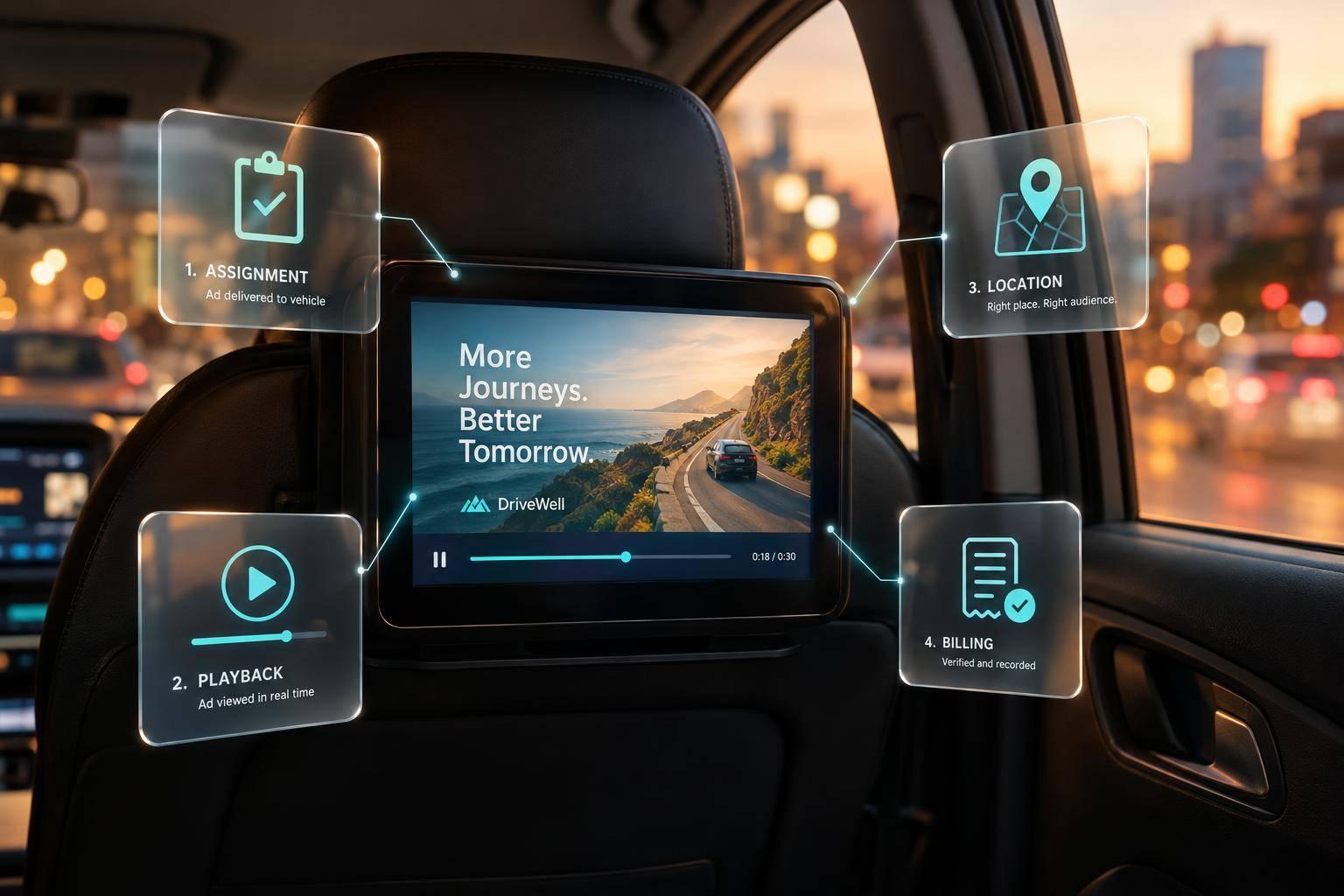
Programmatic taxi ads move from buyer settings to screen playback - but winning a slot doesn’t prove the ad ran. I check three things separately: ad assignment, completed playback, and billable delivery. For example, an ad assigned inside a 2-mile target area may no longer qualify if the taxi leaves before playback.
Here’s how I follow the process:
My bottom line: <u>a playback log is not proof that someone watched</u>. Keep those measures separate when checking what your campaign delivered.

How Programmatic Taxi Ads Reach the Screen
Once the campaign is loaded, the platform needs accurate inventory records to match each ad request to the right screen.
Set the buyer-side rules the system checks before serving an ad:
Once setup is complete, the supply side uses buyer rules to build a bid request when a screen slot opens.
Requests may arrive seconds, minutes, or longer before display, allowing time for asset delivery and caching. When tracing delays, keep request, bid, assignment, download, scheduled time, and actual playback time separate.
The table tracks handoffs from buyer settings through playback and reporting. One platform may handle several roles, and the order of checks varies by integration.
| System component | Main function | Data received | Data returned |
|---|---|---|---|
| Advertiser or agency | Sets campaign goals, budget, targeting, and creative | Campaign brief, locations, dates, budget, assets, measurement requirements | Campaign settings, approved creatives, bid or deal instructions |
| DSP | Checks opportunities and submits bids | Bid request, targeting rules, budget, deal terms, creative eligibility | Bid or no-bid, bid price, campaign ID, creative reference |
| SSP or exchange | Packages inventory and applies supply-side transaction rules | Slot availability, floor price, screen metadata, timing, location, demand responses | Bid request, auction outcome, clearing data, transaction ID |
| Ad server | Schedules and assigns approved ads to slots | Campaign priority, selected bid, creative metadata, schedule, fallback rules | Playlist or assignment, delivery instructions, status events |
| Vehicle player | Downloads, validates, caches, and plays ads | Playlist, media files, timing, device commands | Playback event, timestamp, screen ID, creative ID, device status, error logs |
| Reporting layer | Matches transactions with delivery | Bid records, assignments, playback logs, telemetry, audience models | Proof-of-play, delivery totals, estimated impressions, spend, discrepancies |
After assignment, the player retrieves and validates the file, plays eligible content, and records playback. Reporting then matches that event to the transaction. A player log proves playback, not audience attention. The next checks cover location, time, and budget before playback.
After assignment, the player checks the ad against stored geo-time, budget, priority, and expiration rules. Playlist inclusion alone doesn’t permit playback. Just before the ad runs, the player rechecks screen eligibility, current GPS position, campaign-local time, ad format, spot duration, and playback authorization.
If the taxi leaves the 2-mile geofence before playback, the ad becomes ineligible.
Reject GPS fixes older than the allowed age threshold, and log each fix’s time and accuracy. A wrong device clock can trigger an ad outside its campaign window. Synchronize the clock with NTP and check the window using the campaign’s configured time zone.
Check the ad against the registered screen profile, including file type, codec, dimensions, orientation, duration, size, frame rate, audio policy, and content. Download the asset and schedule securely. Then verify the checksum and decode the file before placing it in the active cache.
Local caching lets ads play during connectivity outages, but only within the downloaded authorization. Screen type also determines which assets the player accepts and how it caches them.
| Requirement | Rooftop LED screen | In-taxi tablet |
|---|---|---|
| Format | Images or motion files supported by the LED controller | Images, video, or HTML where supported |
| Orientation | Usually landscape or a custom layout; do not assume 16:9 | Portrait or landscape, depending on installation |
| Playback limits | Controller resolution, frame rate, brightness, power, and audio policy | Codec, screen sleep, app state, thermal limits, and audio policy |
| Interaction | Generally non-interactive | Touch may be supported, subject to passenger-facing safety rules |
| Delivery | Controller-compatible local cache | Compatible assets with defined offline behavior |
At each slot, reject ads that fail the current rules, then apply priority, pacing, and frequency caps. If no paid ad qualifies - or location, time, or authorization checks fail - use approved fallback content, such as a house ad, public-service message, or network slate. Otherwise, follow the network’s explicit no-play rule.
Cached assets remain authorized only until their stored permission expires. Offline players can enforce stored permissions, local counters, and expiration times. They can’t detect later budget exhaustion, pauses, or campaign edits until they reconnect.
Log play status, campaign/asset IDs, screen or vehicle ID, scheduled and actual times, GPS status, connectivity, and failure reasons. Upload queued events when service returns. These playback logs become the proof-of-play records used in the next step.
After playback, match device logs to the campaign records that created the slot. Proof of play is a device log, not a viewability measure. Track the screen or vehicle ID, campaign, creative, slot, start and end times, duration, status, and GPS or geofence data. Store logs locally while offline, then upload them securely when the device reconnects. Validate records and label late data as delayed.
Follow this sequence: play log → transaction match → billing reconciliation → exception review. Use one event key to match buyer transaction IDs with campaign, deal, creative, and device events. Reject exact duplicates, retain valid repeat plays, and flag possible duplicates caused by retries or clock drift for review. Keep partial plays and missing transactions flagged - not counted as completed delivery.
Keep playback counts, audience estimates, and billable delivery separate. Apply the contracted impression model and multiplier, along with the contract’s rules for completion, exclusions, billing units, and rounding. State the billing method clearly so readers don’t mistake device logs for audience counts.
Compare auction wins, scheduled ads, completed plays, estimated impressions, and billable delivery by market, screen type, time window, fleet, and asset. Find the step where the counts diverge.
Treat mismatches as operational exceptions. Check for rejected files, missed plays, stale GPS data, duplicate events, clock errors, and device downtime. Review the last heartbeat, GPS fix, and asset version. Attach an exclusion reason to every rejected record.
Real-time analytics can still receive offline playback records later. Store playback time and ingestion time separately, and backfill accepted events into their original playback window. Label reports as pending validation or finalized, display the last successful synchronization, and agree on a reconciliation cutoff before invoicing. Use any remaining mismatches to guide the readiness checks in the next step.
Use this final checklist to confirm the buyer-to-screen chain works from end to end.
For unattended vehicles, verify Auto Start and Kiosk Mode after a power cycle. The player should return to the ad app without driver intervention.
Use real-time platform monitoring to track device health and screen uptime. Enroute View Media’s automated alerts let you know when a device goes offline, so you can pause campaigns quickly and avoid spending money on screens that aren’t working.
Supported devices can continue playing stored content during temporary internet outages. Check device status in the dashboard to spot and disable underperforming inventory until the connection is fully restored.
Start with a geofence of about 980–1,640 feet (300–500 meters) to balance targeting precision with audience reach. Allow enough room for vehicles to stay inside the zone for at least 15 seconds so the ad can trigger and display correctly.
Use a cloud-based management platform, such as Enroute View Media’s, to set boundaries around high-traffic neighborhoods, stores, or competitor sites.
Your contract should require verifiable proof-of-play for every ad: a precise timestamp, the vehicle’s exact GPS location, and the ad’s exposure duration. Sensor-based audience estimates don’t confirm playback. These logs do.
Cloud-based content management systems generate proof-of-play logs as the definitive record of ad delivery. Consistent formats, such as JSON, make those records transparent and simplify advertiser billing.
Need pricing details?
EnrouteViewMedia is a Canadian technology company based in Edmonton, Alberta, Canada. The company was founded by a group of media entrepreneurs and engineering executives. Our mission is developing leading-edge digital media display technologies for taxicab rooftops and taxicab interiors advertising market. Through our easy to use ad delivery and management system, we assist our clients in reaching their customers with targeted exposure. EnRouteViewMedia continuously strives to be the global leader in digital geo-time targeted advertising media systems for modern taxi fleets.